


1Password: Password Manager
4.82.38K Reviews
App Specs
- Version
- 8.12.34
- Updated On
- License
- Free
- Downloads
- 1,000,000+
- Developer
- AgileBits
- Categories
- Productivity
- Platform
- Android, iOS
Screenshots
 Analysis by AppCompare
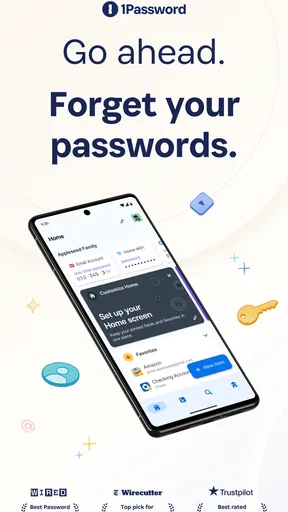
My clearest impression of 1Password: Password Manager is that it turns password security into a routine rather than a chore. Instead of reusing a familiar password or hunting through old messages for a login, I can keep credentials and other private details together and retrieve them when needed. That convenience is the point, but a password manager is only useful if its setup and daily habits suit the person using it.
Where it fits today
1Password is a productivity app from AgileBits, built around storing sensitive details for everyday use. It is free to install, rated for Everyone, and has an average rating of 3.6 from around 17,000 ratings, with roughly 2,100 written reviews and more than a million installs. Those figures suggest a widely used tool that still draws mixed reactions, so I would treat it as a practical option to assess for yourself rather than assuming it will fit every workflow.
The current version is 8.12.2, and the app has been available since July 27, 2022. Its core appeal is easy to understand: one secure place for passwords, payment-card details, notes, and similar information. The real value shows up when you have accounts across several services and want a safer alternative to memory, browser notes, or a document you would rather not leave exposed.
What the version tells you—and what it does not
A version number is useful for identifying the app you are considering, but I would not read it as proof of any particular new feature or recent redesign. The safest conclusion is that 8.12.2 is the current version cited here; specific changes over time should be judged from release notes rather than guessed from the number. That distinction matters with security software, where a confident-sounding claim about an update is less helpful than knowing what actually changed.
For someone already using 1Password, the sensible approach is to update through the official app store and check the version shown on the device. If you are deciding whether to move your passwords into it, focus less on the version label and more on whether the app works comfortably with your devices and sign-in habits. A password manager becomes part of your daily access routine, so reliable retrieval matters as much as a feature list.
What changes for an existing user
If you already have a collection of logins, changing password managers can feel more daunting than installing another app. I would make the move in stages: first check that your important accounts are present, then test a few sign-ins on the devices you use most, and only then rely on the new routine. Keep your old method available during that check, but avoid leaving duplicate, unprotected password lists around longer than necessary.
That staged approach also helps reveal small friction points early. A login may use a separate username, a one-time code, or a less common sign-in flow, and an autofill suggestion may not appear exactly where you expect. Rather than assuming the saved entry is wrong, open it and check the details before changing the account password. This simple habit can prevent an unnecessary reset when the issue is only an incomplete or mismatched entry.
Worth Reading Before You Choose

EA SPORTS FC Mobile 26 Is a Bigger Football Game, but It Takes Time

Flipboard Shows What News Apps Must Do Beyond the Feed

Switching to Android Auto Means Rethinking Your Driving Routine

Google Calendar Makes a Crowded Week Easier to Manage

Ludo King Makes the Most of the Minutes Between Plans

Baby Panda World Brings Quick Play to Modern Phones, but Its Game Library Feels Busy
Limits worth weighing
A password manager concentrates important information, which makes access convenient but also makes your main unlock method especially important. I would choose a strong master password that I can reliably remember, and I would make sure I understand the recovery and sign-in steps before depending on the app as the only place I keep essential credentials. A tool like this reduces the burden of remembering many passwords; it does not remove the need to protect the way into the vault.
There is also a cost decision to make. The app is free to download, while in-app purchases range from $4.99 to $239.99 per item. I would check the plan and purchase details shown in the app before committing, then compare the ongoing cost with the convenience I actually expect to get. If you only need to save a few logins and already use a built-in password tool that works smoothly across your devices, switching may add more setup than value.
Who I would recommend it to
I see the strongest case for 1Password if you manage many accounts, use more than one device, or want a dedicated home for information beyond passwords. It can also make sense for households or work groups that need a deliberate way to share access, provided everyone is comfortable following the same basic security habits. If your priority is simply autofill on one device and you do not need a separate vault, the password manager already built into your browser or operating system may be the simpler choice.
One useful way to judge it is to consider a normal day, not an ideal security checklist. You might need to sign in to a travel account on your phone, check a saved card detail while paying, and later retrieve a Wi-Fi password for a visitor. Having those items organized in one place is more useful than a vault you only open after forgetting a password. Before moving everything over, try the actions you repeat most often and see whether they feel natural.
Getting Started with 1Password
First things first, downloading 1Password is a breeze. Whether you’re rocking an Android or iOS device, it’s just a few taps away in your app store. Once installed, you’re greeted with a clean, intuitive interface, which is exactly what you need when everything else in life seems chaotic.
Setting Up Your Vault
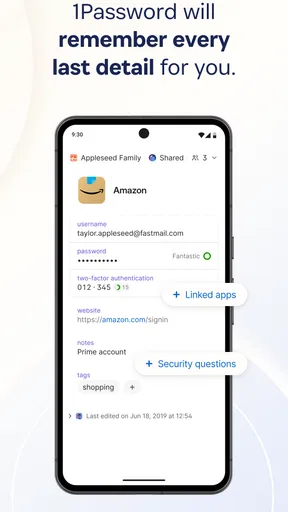
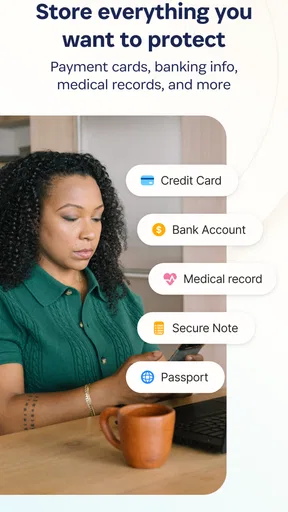
Setting up your vault is straightforward. You’ll create a master password, which is like the key to your kingdom. Make sure it’s strong and memorable because, ironically, you won’t want to forget this one! Once you’re in, you can start importing or manually entering your passwords. The app supports multiple categories, from logins to credit cards and even secure notes, making it an all-in-one solution.
My practical tip is to start with the accounts that would cause the most trouble if you lost access: your main email, financial services, and the accounts used to recover other logins. Add them, test them, and then work through less urgent accounts over time. This gives you a useful vault quickly without turning setup into a long project. For entries you add by hand, check that each one includes the right username as well as the password; that small detail is easy to overlook when an account has several email addresses.
Security Features
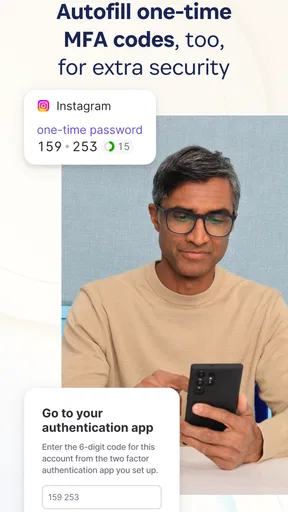
I know what you’re thinking: “Is it really secure?” The answer is yes. 1Password uses end-to-end encryption, meaning your data is locked down tighter than Fort Knox. Plus, with features like two-factor authentication and biometric unlock (hello, Face ID!), you’re covered from all angles.
Even with those protections, I would not treat biometric unlock as a substitute for understanding the master password. Biometrics can make routine access feel effortless, while the master password remains central to the vault. I also recommend keeping recovery information for important accounts separate from the account itself where practical. That way, a saved password is not the only thing you know about getting back in if a service asks for an extra verification step.
Usability and Integration
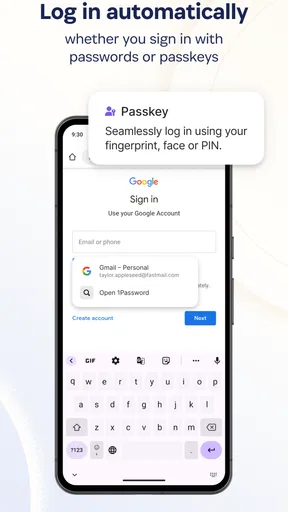
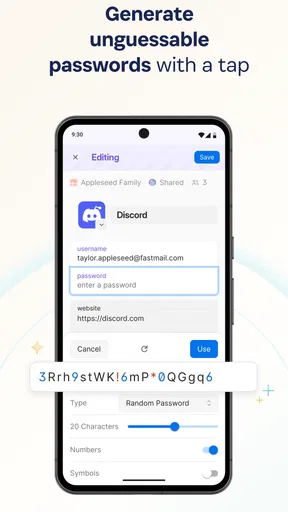
One of the standout features is how seamlessly 1Password integrates with your browser and other apps. It’s like having a superpower. Need to log in somewhere? Just a quick tap, and you’re in. It even suggests strong passwords when you’re setting up new accounts, which is a lifesaver for the indecisive among us.
- Browser Extensions: Available for Chrome, Safari, Firefox, and more, these extensions make autofill a dream.
- Cross-Platform Sync: Whether you’re on your phone, tablet, or computer, your passwords are just a click away.
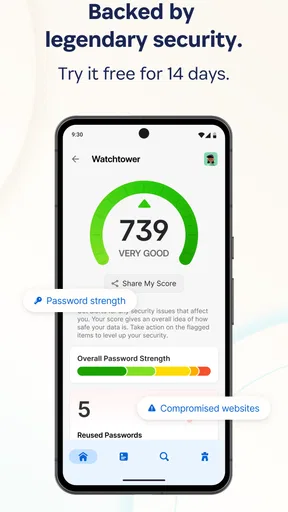
- Watchtower Alerts: Get notified of data breaches so you can update your credentials pronto.
Autofill is at its best when you pause to confirm which account the app is offering. If you have personal and work logins for the same service, choosing the wrong one can create confusion even when every password is saved correctly. I find it useful to give entries clear names that distinguish their purpose, rather than relying on the website name alone. That small bit of organization can save time each time a sign-in prompt appears.
Password suggestions are most valuable when you use them at the moment you create or change an account, then save the new credential immediately. If you generate a strong password but leave the site before saving it, the extra complexity becomes a problem rather than a benefit. For accounts with additional verification, remember that the password manager handles the stored credential, while the service may still ask you to complete its own sign-in checks.
Family and Team Plans
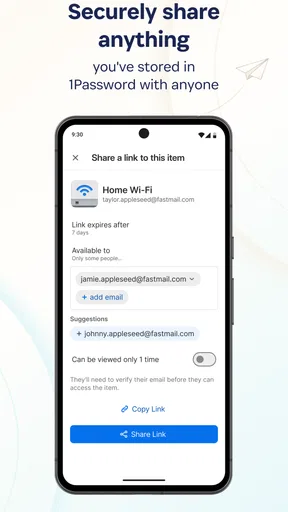
If you’re not just looking out for yourself, 1Password offers family and team plans. This means you can share access securely with loved ones or colleagues, making it perfect for collaborative environments. No more sticky notes with passwords under keyboards (we’ve all been there).
Shared access works best when people agree on what belongs in a shared space and what should stay private. I would keep personal accounts separate from credentials that a household or team genuinely needs, and give shared entries names that make their purpose clear. This avoids the common mistake of treating a shared vault as a dumping ground. It is also worth agreeing who will update a shared login when a password changes, so the next person is not left with an outdated entry.
My Personal Experience
In my time using 1Password, it’s become an indispensable part of my digital routine. The peace of mind knowing that my information is safe is priceless. Plus, the time saved from not having to reset forgotten passwords is a huge win. I’ve even started using it to store other sensitive information, like my Wi-Fi passwords and software licenses. It’s like Marie Kondo for your digital life.
The trade-off is that a tidy vault takes a little attention. I would review entries when I change a password, remove duplicates once I know which one is current, and avoid saving vague notes that I will not understand later. A short, clear label and a quick check of the username make stored details more useful months from now. This is especially helpful for less frequent accounts, where it is easy to forget why two similar entries exist.
Compared with saving passwords in a browser, a dedicated manager can feel more intentional when you want one organized place for logins and other private records. A browser’s built-in option may still be more convenient if you work almost entirely in one browser and want the fewest moving parts. I would choose based on where you sign in most often: a manager that fits your real devices and habits is better than one with features you rarely use.
Subscription and Pricing
Now, let’s talk about the investment. 1Password isn’t free, but it’s worth every penny. They offer a 30-day free trial, so you can test the waters before committing. After that, it’s a monthly or annual subscription, depending on your preference. Honestly, the cost is a small price to pay for the security and convenience it offers.
Since the app is free to download but offers in-app purchases, I would review the purchase options in the app and decide whether the features and sharing arrangements match your needs. The listed purchase range runs from $4.99 to $239.99 per item, so it is worth checking what each option covers rather than assuming every user will pay the same amount. For a simple personal setup, compare that commitment with the alternatives you already have before moving all your credentials.
What I would watch next
When deciding whether to keep using a password manager, I pay attention to the everyday basics: can I unlock it without friction, can I find the right entry quickly, and do saved details work when a site changes its sign-in screen? Those are more meaningful to me than a version number by itself. For an existing user, checking official release notes when an update arrives is the best way to understand what changed and whether it affects a workflow you rely on.
I would also revisit the choice if your needs change. A person moving from one phone and a few accounts to several devices, shared household logins, and a larger set of sensitive notes may get more from a dedicated manager. Someone who wants only effortless sign-in in a single ecosystem may prefer its built-in option. Neither choice is automatically safer or better for everyone; the right one is the tool you can use consistently and keep organized.
In conclusion, if you’re tired of the password juggling act, give 1Password a try. It’s not just an app; it’s a lifestyle upgrade. Your future self will thank you for making the switch. And remember, in the world of digital security, it’s better to be safe than sorry. Happy password managing!
Pros
- User-friendly interface simplifies navigation.
- Strong encryption ensures data security.
- Cross-platform sync for seamless access.
- Biometric login adds an extra layer of security.
- Secure password sharing with trusted contacts.
Cons
- Premium features require a subscription.
- Limited features in the free version.
- Occasional sync delays across devices.
- Initial setup can be time-consuming.
- Some users find the UI a bit cluttered.
FAQs for 1Password: Password Manager
What is 1Password and how does it work?
1Password is a comprehensive password manager that securely stores your passwords, credit card information, and other sensitive data. It uses encryption to protect your data, which can be accessed using a single master password. The app integrates with browsers and mobile devices, making it easy to autofill login details and manage your credentials across platforms.
Is 1Password secure enough to trust with sensitive information?
Yes, 1Password is designed with security as a top priority. It uses end-to-end encryption, meaning your data is encrypted before it leaves your device. Only you have the master password to decrypt your information. Additionally, 1Password offers features like two-factor authentication to enhance security further, ensuring your data remains safe from unauthorized access.
Does 1Password support multiple devices and platforms?
Absolutely. 1Password is available on a variety of platforms including Android, iOS, Windows, and macOS. It offers seamless synchronization across all your devices, ensuring you have access to your passwords and sensitive data wherever you are. You can also use browser extensions to streamline your experience while browsing online.
Can I share passwords with others using 1Password?
Yes, 1Password allows you to securely share passwords and other sensitive data with trusted individuals. You can create shared vaults where you and your family or team members can access the information they need. This feature ensures that sharing is done securely without exposing your data to unnecessary risks.
Is there a free version of 1Password available?
1Password does not offer a completely free version, but it provides a free trial period to explore all its features. After the trial, you can choose from various subscription plans that best fit your individual or family needs. These plans come with comprehensive features that enhance your digital security and ease of use.


